
Microsoft announced the SKU lineup of Windows 7, and while the company says it will focus mainly on two editions: Windows 7 Home Premium and Windows 7 Professional; Microsoft offers a total of six different Windows 7 versions (more, if you count the stripped-down K, N and KN versions the company is required to sell overseas because of antitrust rulings). This is the full Windows 7 SKU (Stock Keeping Unit) line-up:
- Windows 7 Starter Edition (for netbook users)
- Windows 7 Home Basic (for emerging market customers only)
- Windows 7 Home Premium (the main consumer version)
- Windows 7 Professional (the business SKU for home and small business users)
- Windows 7 Enterprise (for medium to large businesses and enterprise customers that use Software Assurance)
- Windows 7 Ultimate (for consumers who want all the business features)
Key Feature List:
Starter Home Basic Home Premium Professional Enterprise and Ultimate Broad app and device compatibility with up to 3 concurrent applications
Ability to join a Home Group
Improved taskbar and JumpListsStarter features plus:
Unlimited applications
Live Thumbnail Previews & enhanced visual experience
Advanced networking support (ad-hoc wireless networks and internet connection sharing)
Mobility CenterHome Basic features plus:
Aero Glass & advanced windows navigation
Easy networking & sharing across all your PCs & devices
Improved media format support, enhancements to Windows Media Center and media streaming, including Play To
Multi-touch and improved handwriting recognitioHome Premium features plus:
Ability to join a managed network with Domain Join
Protect data with advanced network backup and Encrypting File System
Print to the right printer at home or work with Location Aware PrintingProfessional and Consumer features plus:
BitLocker data protection on internal and external drives
DirectAccess provides seamless connectivity to your corporate network. (requires Windows Server 2008 R2)
Decrease time branch office workers wait to open file across the network with BranchCache. (requires Windows Server 2008 R2)Note: Windows 7 Enterprise is available only through Microsoft Volume Licensing
According to Mike Ybarra, general manager for Windows there are some changes to the Windows 7 packaging & marketing in comparison to Windows Vista: "The first change in Windows 7 was to make sure that editions of Windows 7 are a superset of one another. That is to say, as customers upgrade from one version to the next, they keep all features and functionality from the previous edition. As an example, some business customers using Windows Vista Business wanted the Media Center functionality that is in Windows Vista Home Premium but didn't receive it in Business edition. Customers won't have to face that trade-off with Windows 7. With Windows 7 there is a more natural progression from one edition to the next."
"The second change is that we have designed Windows 7 so different editions of Windows 7 can run on a very broad set of hardware, from small-notebook PCs (sometimes referred to as netbooks) to full gaming desktops. This way, customers can enable the scenarios they want across the broad hardware choices they have. "
"The third change lies in how we broadly communicate in the marketplace, to make these choices as simple and clear as possible for customers and partners."
This last point will (according to Microsoft) mean that the company will focus most of their marketing attention to only two primary editions: Windows 7 Home Premium, and Windows 7 Professional. Microsoft thinks that these two editions will serve the majority of their customers' needs. Windows 7 Home Premium as the recommended choice for consumers and Windows 7 Professional the recommended choice for small businesses users.
Microsoft has not yet announced pricing for Windows 7.
Windows 7: The new Taskbar
Microsoft did a lot of work on the new taskbar for Windows 7. They looked extensively how people were using their computers and started making improvements based on those observations. The number one task for which people use the taskbar is switching between windows. Below I will show and discuss some of the changes/enhancements.
Microsoft has started their taskbar improvements with a facelift that includes larger icons, which make it easier to identify programs, and also makes it easier to target icons with a cursor without accidentally clicking on the icon next to it. The Windows 7 taskbar is 10 pixels (at the default 96 DPI) higher than the taskbar used in Windows Vista, this of course when used as a single row (you are still able to use multiple rows). You'll also note that the taskbar looks more 'glassy'. According to Microsoft the feedback they got was that users dislike Vista's UI where the taskbar would turn opaque and dark.

You can still pin programs to the taskbar by dragging them or via a context menu, just like you have always done with Quick Launch.
In Windows 7 Microsoft effectively combined the QuickLaunch and taskband. In order to maximize the use of available space, Microsoft standardized launching and switching behavior so that only a single representation is made on the taskbar.

As you can see from the images above, the shortcut for Microsoft Word (subtly) changes to represent an opened Word document. Now you may wonder what would happen when you have two or more documents open, and how you would be able to switch between them.
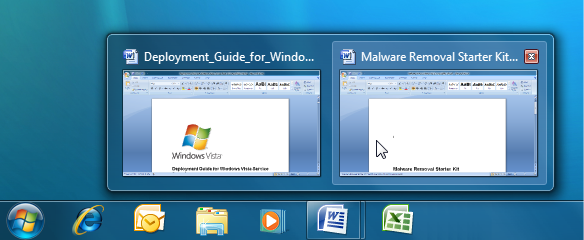
Here is where another improvement to the taskbar comes to light. When hovering over a taskbar button you'll see a thumbnail as you would in Vista. The difference with Vista is that in Windows 7 the thumbnails are now an extension of their corresponding button so you can click on these to switch to a given window. The thumbnails are also a more accurate representation of a window; complete with an application icon in the top left corner, window text and even the ubiquitous close button in the top right.

There is a visual cue of stacked tiles to give a clue whether there are multiple windows running for a program (see picture above).
Another advantage of the single representation is that you can now move taskbar buttons. Quick Launch has always allowed this, but combining this mechanism with the taskband naturally extended rearrange functionality to running windows.
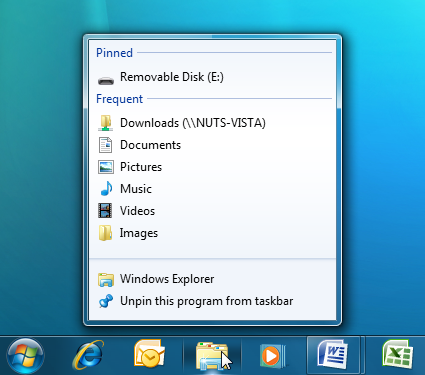
The next improvement I want to talk about is called "Jump Lists". Most users are used to the concept of the context menu that is available for running programs. This menu is accessible by right-clicking on a taskband button. The advantage is that you don't have to start the program to quickly access a task or launch a file.
Above you see the jump list of Windows Explorer's taskbar shortcut, which includes frequently accessed locations as well as the most recent accessed locations. You can also pin specific locations to this list, so you can always access them quickly (Figure).
Notification Area
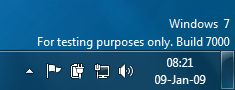 Microsoft also greatly improved the notification area, putting users back in control. By default, only a select few system icons are shown while all others appear in a menu (Figure). Simply drag icons on or off the taskbar to control the experience. Also, every balloon tip that appears in the notification area has a little wrench icon that allows one to quickly configure the icon & notifications (Figure).
Another commonly requested change is that the default taskbar now shows both the time and date.
I think that these are all good improvements to the taskbar, and while it will take a bit of time to get used to the change, the important thing is that these changes definitely improve the functionality of the taskbar.
Frequently Asked Questions (FAQ)
| The purpose of this FAQ is to provide you with some general information about Windows 7. Q: Windows 7? Q: When will Windows 7 ship? Q: What features will be included in Windows 7? User Account Control improvements. Windows Vista's most hated feature is being completely overhauled to be more customizable. Four settings will be available (Figure):
Updated Windows Explorer. Windows Explorer (Figure) is being updated with a number of new features, including a new toolbar, and a new icon view style called Content (Figure). The search box has also been updated, and is now resizable (Figure). Extended ReadyBoost. First introduced in Vista, ReadyBoost in Windows 7 adds support for concurrently using multiple lash devices (such as USB keys, Secure Digital cards, and internal flash devices) and for caches larger than 4 GB. Improved "Out Of Box" experience. Microsoft made several improvements to Windows 7 so a user's first experience when running the OS for the first time will be improved. Windows 7 expands on Vista's setup routine; for example when installing Windows 7 on a PC that includes a Wireless Network, setup will prompt you to join a network during the setup phase. Multi-touch. Windows 7 will include integrated support for multi-touch displays and support the "Surface" multi-touch technologies. HomeGroup networking. Windows 7 HomeGroup makes it easier to create a home network where PCs share pictures, music, videos, documents, printers, and other resources with each other. Computers running Windows 7 automatically identify and connect with each other (Figure). Location Aware Printing. When you change network locations, such as when taking your work laptop home for the evening, the default printer setting can change to relect the best printer for that new location. When you print at work, Windows 7 will print to your work printer. When you print at home, Windows 7 will automatically select and use your home printer. ClearType Text Tuner. A ClearType Text Tuner can be found in the Windows 7 Control Panel. In the past, Microsoft Powertoys provided access to a ClearType Tuner which has now been integrated into Windows 7. This will let users configure their display to their personal liking (Figure). Sidebar Removed. Microsoft removed Windows Sidebar from Windows 7, but the Windows Gadgets infrastructure remains. In Windows 7, Gadgets can only be viewed on the desktop. As such, the Gadget Gallery found in the Windows Sidebar on Vista is now available from the desktop right-click menu. Windows Solution Center. Microsoft replaced Windows Security Center with a new utility called Windows Solution Center. Besides monitoring Firewall, Automatic Updating, Virus and Malware protection, Internet security settings and User Account Control settings, the new Solution Center will also monitor PC maintenance and performance, backup, troubleshooting, Network Access Protection (NAP), and much more (Figure). Microsoft Paint. Windows 7 includes a dramatically improved version of Microsoft Paint (finally!), the first major upgrade to this software since it first appeared in Windows (Figure). This includes the Scenic Ribbon to replace the old menu's, similar to the ribbon in Microsoft Ofice 2007. Controls in Paint are touch-ready, so you can even use your finger to paint and choose colors or shapes (when you have a touch screen). Internet Explorer 8. Windows 7 will include the latest version of Microsoft's Web browser. Windows Media Center. Windows 7 will include a new version of Windows Media Center. Microsoft WordPad. Word Pad also takes advantage of the Scenic Ribbon. Other improvements to WordPad include highlighting, line breaks, additional text colors, bullets, indents, print preview enhancements, picture insertion, and zoom, making WordPad a capable word processor (Figure). Calculator. Calculator has a new look and some brand-new features. You'll find calculation history, unit conversion (Figure), calculation templates, date calculations, and controls that are optimized for touch. Sticky Notes. Sticky Notes support ink and text input. You can paste text into Sticky Notes, resize them on the desktop, and use note colors to personalize or organize Sticky Notes. Q: What are the System Requirements to run Windows 7? Q: Will Windows 7 be a 32-bit or 64-bit operating system? | Some of the new wallpapers:            |


No comments:
Post a Comment